
As planning models grow more complex and collaborative, ensuring the accuracy and consistency of entered data is crucial! Workday Adaptive Planning’s Modeled Sheet Data Validation feature offers powerful capabilities to proactively prevent errors and maintain clean, reliable data across your planning environment. Whether you’re planning headcount, capex, sales, or whatever the case may be, validation rules help enforce logic at the point of data entry to prevent these inevitable human errors!
What Is Modeled Sheet Data Validation?
Data validation in modeled sheets allows you to create custom rules that evaluate the data that users enter. If the data violates a rule, Adaptive displays an alert — either blocking the save or issuing a warning — based on how you configure the rule.
These rules apply not only in modeled sheets but also:
- On dashboards using modeled sheets
- During data API imports
- When using Planning Data Loaders
Additionally, they work across all versions of your modeled sheet data, meaning no versioning loopholes to bypass the rules.
Key Benefits
- Prevent Common Data Errors: Catch mistakes like incorrect dates, blank key values, or out-of-range entries.
- Enforce Business Rules: Ensure all records meet the logic your business depends on.
- Improve Data Imports: Apply validations even when importing data via APIs or loaders.
- Guide Users: Use custom help text to show users how to fix their incorrect input.
How It Works in Practice
When a user enters data that breaks a validation rule:
- Critical errors are highlighted with red borders and prevent the sheet from being saved until corrected.
- Warnings are shown in orange, and the user can still save — great for soft guidance.
Users can hover over the error to read your custom help text and correct the data immediately.
Let’s take a look at an example:
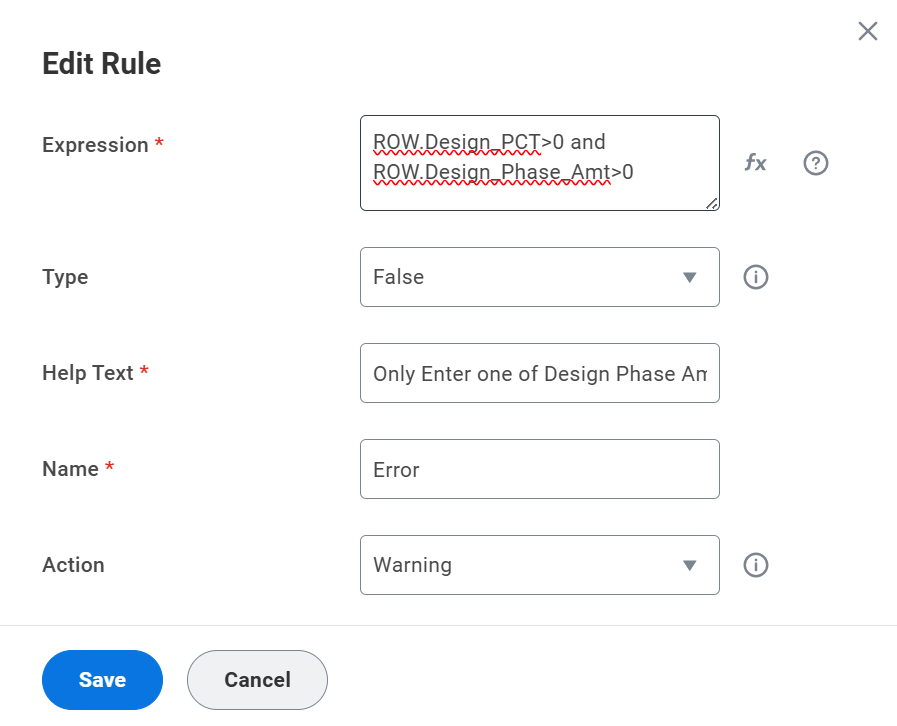
In this Data Validation Rule, the expression is saying that there cannot be a value in both the Design Phase Amount Row and the Design Percent row. The goal of this rule is to make sure users only enter a value in one of these fields, not both.


As you can see, entering a value in one of these fields causes no problems.

However, when a user tries to enter a value in both fields, the row will become highlighted and an error message displays, which is the same error message I configured in the backend of the rule!
Setting Up Modeled Sheet Data Validation
Pre-Configuration Steps
- 1. Enable Validation in Administration
Go to Administration > Visual Preferences and select:
- Data validations in Sheets
- Data validations in Import Data (if you want to apply validations during data import)
- 2. Clean Column Codes
In Model Management, make sure to remove any spaces from column codes for the fields you plan to reference in your rules. - 3. Ensure Permissions
Your role must include permissions for:- Sheets
- Accounts
- Dimensions
- Formulas
⚠️ If you’re using Workforce Planning applications, make sure the Purpose is set to Plan in Adaptive Planning. This can’t be changed later.
How to Create a Validation Rule
- 1. Navigate to Model Management > [Your Sheet Type] (Level Assigned or User Assigned Sheets).
- 2. Click Edit next to your modeled sheet.
- 3. Select the Data Validation Rules tab.
- 4. Click + Add Rule and fill in the details:
| Field | Description |
| Expression | Use row dot notation (e.g., Length(ROW.ID) = 4) or the Expression Builder |
| Help Text | User-facing message (max 128 characters) |
| Name | Unique rule name (max 65 characters) |
| Type | True – error shown when condition is falseFalse – error shown when condition is true |
| Action | Critical (blocks save) or Warning (alert message pops up but still allows save) |
Use the Expression Builder for an intuitive interface to build and test expressions using dropdowns for columns and logical operators.
Expression Examples
- TerminationDate >= HireDate — Prevents users from entering illogical employment periods.
- Length(ROW.ID) = 4 — Ensures all ID fields have a standard format.
- PayRate <= 100000 — Flags outlier compensation data.
Pro Tips for Managing Rules
- You can have up to 15 active rules per sheet — others can be kept as drafts.
- Validations apply only to rows currently displayed — filter out invalid rows if needed to save valid data.
- If users already have a sheet open, they must refresh it to apply new or updated rules.
- When importing data via the importConfigurableModelData API, validation can be enforced or skipped. If enforced and critical errors exist, the import fails with detailed feedback.
Final Thoughts
Modeled Sheet Data Validation in Workday Adaptive Planning offers a robust layer of control to prevent bad data from ever entering your model — whether through manual input or automated imports. By combining logical expressions, user-friendly feedback, and system-wide enforcement, it’s an indispensable tool for model administrators aiming to ensure data quality and reliability.
If you’re not using this feature yet, start with a few key validations and iterate. The cleaner your input, the more confident you’ll be in your output!
Revelwood is more than just a Platinum Workday Adaptive Planning partner — we’re a trusted advisor to the Office of Finance. With 30 years of experience and award-winning expertise, we bring together powerful software, proven best practices and pre-built, ready-to-deploy solutions that accelerate time to value. Our team doesn’t just implement technology — we help finance teams transform the way they plan, analyze and make decisions. Discover how Revelwood can help you get the most out of Workday Adaptive Planning — and achieve results that matter.
Read more Workday Adaptive Planning Tips & Tricks:
Leveraging Repeating Reports in Workday Adaptive Planning’s OfficeConnect
The Power of Split Rows in Workday Adaptive Planning Modeled Sheets