• Skip to main content
  • Skip to footer
Revelwood Logo

Revelwood

Your SUPER-powered WP Engine Site

  • Who We Are
    • About Us
      • Our Company
      • Our Team
      • Partners
    • Careers
      • Join Our Team
  • What We Do
    • Solutions
      • Workday Adaptive Planning
      • IBM Planning Analytics
      • BlackLine
    • Services
      • Finance Transformation Services
      • Implementation Services
      • Customer Care
        • Help Desk
        • System Administration as a Service
      • Training
        • Workday Adaptive Planning Training
        • IBM Planning Analytics / TM1 Training
    • Products
      • DataMaestro
      • LightSpeed
      • IBM Planning Analytics Utilities
  • How We Help
    • Use Cases
    • Client Success Stories
  • How We Think
    • Knowledge Center
    • Events
    • News
  • Contact Us

Workday Adaptive Planning Tips & Tricks

How to Edit a Dashboard


January 14, 2026

By Sarah Hildenbrand

Dashboards are a key way to visualize and share important data in Workday Adaptive Planning. Knowing how to edit them effectively allows you to tailor the insights for your team, track performance metrics, and ensure everyone is looking at the most relevant information.

In this Tips & Tricks guide, Sarah Hildenbrand, a Lead Consultant at Revelwood, walks you through the step-by-step process of editing a dashboard while maintaining control over shared content.

  1. 1. First go to the “Dashboard” section of Adaptive Planning in Global Navigation. If you are on the dashboard and see the “Edit” button grayed out, you need to check out the dashboard Perspective. 
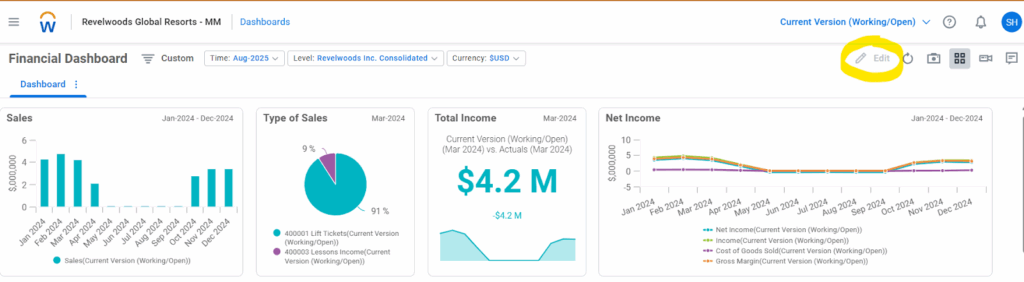
  1. 2. To “Check it out” you need to go to the dashboard section and click on the three dots right of the dashboard which is shared with everyone.

  1. 3. Now you can edit the dashboard in the “Personal” location and make changes without anyone else being able to override them but they can still view the dashboard in the “Shared” location.

  1. 4. Click on the dashboard, click “Edit”, and make the changes to the dashboard as needed and once done then click “Done”.

  1. 5. Then once in the dashboard section, make sure to “Publish” the dashboard so now people can see your changes and can make their own updates now.

Editing dashboards in Adaptive Planning is straightforward once you know how to work in Personal mode. This approach ensures you can customize your view, experiment with different layouts, and update information without disrupting dashboards used by others. By mastering these steps, you can make your dashboards more insightful, collaborative, and actionable for your team.

Revelwood is more than just a Platinum Workday Adaptive Planning partner — we’re a trusted advisor to the Office of Finance. With 30 years of experience and award-winning expertise, we bring together powerful software, proven best practices and pre-built, ready-to-deploy solutions that accelerate time to value. Our team doesn’t just implement technology — we help finance teams transform the way they plan, analyze and make decisions. Discover how Revelwood can help you get the most out of Workday Adaptive Planning — and achieve results that matter.

Read more Workday Adaptive Planning Tips & Tricks:

Leveraging Repeating Reports in Workday Adaptive Planning’s OfficeConnect

The Power of Split Rows in Workday Adaptive Planning Modeled Sheets

What Are Level Dimensions?

Author

  • Sarah Hildenbrand

    View all posts
    • Categories

      • Accounting and Accounts Receivable
      • Awards & Recognition
      • Data Analytics in Finance
      • Finance Transformation
      • Financial Close & Consolidation
      • FP&A Done Right
      • IBM Planning Analytics Tips & Tricks
      • News & Events
      • Success Stories
      • Tech Bulletins
      • Workday Adaptive Planning Insights
      • Workday Adaptive Planning Integration Center of Excellence
      • Workday Adaptive Planning Tips & Tricks

    Popular Posts

    Authors

    Adam Riskin
    Adam Riskin
    Brian Combs
    Brian Combs
    Cameron Burke
    Cameron Burke
    Dave Miersch
    Dave Miersch
    Ivan Cepero
    Ivan Cepero
    John Pra Sisto
    John Pra Sisto
    Jonathan Dunn
    Jonathan Dunn
    Julia Seelin
    Julia Seelin
    Ken Wolf
    Ken Wolf
    Lee Lazarow
    Lee Lazarow
    Lisa Minneci
    Lisa Minneci
    Luke Griffie
    Luke Griffie
    Marc Assenza
    Marc Assenza
    Mary Luchs
    Mary Luchs
    Michelle Song
    Michelle Song
    Revelwood
    Revelwood
    Rob Gordy
    Rob Gordy
    Robert Nordhagen
    Robert Nordhagen
    Sarah Hildenbrand
    Sarah Hildenbrand
    Simon Foley
    Simon Foley
    Thomas McDade
    Thomas McDade

    Sign up for our newsletter

    Connect

Footer

Revelwood Overview

Revelwood helps finance organizations close, consolidate, plan, monitor and analyze business performance. As experts in solutions for the Office of Finance, we partner with best-in-breed software companies by applying best practices guidance and our pre-configured applications to help businesses achieve their full potential.

EXPERTISE

  • Workday Adaptive Planning
  • IBM Planning Analytics
  • BlackLine

ABOUT

  • Who We Are
  • What We Do
  • How We Help
  • How We Think
  • Privacy

CONNECT

World Headquarters

Florham Park, NJ | 201 984 3030

European Headquarters

London & Edinburgh | +44 (0)131 240 3866

Email
info@revelwood.com

Copyright © 2026 · Revelwood Inc. All rights reserved. Revelwood® and the Revelwood logo are registered marks of Revelwood Inc.