
Spreading revenue over time is a common requirement in FP&A, especially for implementations, phased projects, or ramp-up initiatives where revenue is recognized gradually rather than all at once. Manually allocating revenue across months can be time-consuming and error-prone—but Workday Adaptive Planning offers a powerful, built-in solution to handle this automatically.
In this Tips & Tricks guide, Robbie Nordhagen walks through how to use Spread Lookups in modeled sheets to efficiently distribute revenue (or expenses) over multiple periods. This approach helps ensure accuracy, consistency, and flexibility while reducing manual effort.
Using Spread Lookups in Modeled Sheets
Spreading Revenue over months is a common practice especially when Revenue is related to an implementation, a ramp-up, or a project. For example, a project may have total Revenue of $1,000,000, but the million is paid out over time as the project progresses. Adaptive has a feature for Revenue spread (can also be used for Expense spreading). The Adaptive feature is called Spread Lookups and is available in modeled sheets.
Spread Lookups
Set Up Requirements
To get started, you’ll need a modeled sheet with the following columns:
- Revenue (or Project) ID
- Revenue Amount
- Start Date
You’ll also need two accounts:
- One account to hold the total project revenue
- A second account defined as a spread account, which will distribute the revenue across periods
Step 1: Create the Modeled Sheet
First, create a modeled sheet and add the three required columns:
- Project (or Revenue) ID
- Project Amount (Revenue Amount)
- Start Date
Set up the Project ID column with a Spread Lookup.
1. Create a modeled sheet

2. Set up the columns: Create the 3 required columns

3. Set up Project ID with a spread lookup
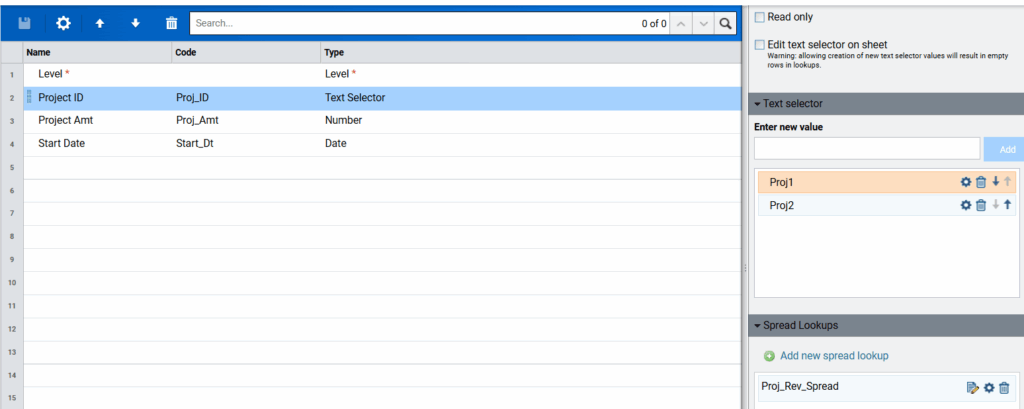

Step 2: Define the Spread Expression
After saving, click the pencil (edit) icon to define the spread expression.
The syntax follows this structure:
- Period(s) : Ratio
- Example: .05 or 3/20 (where 20 represents the total number of periods over which the revenue is spread)
This defines how much revenue is allocated to each period. Use a comma , to define additional periods in the expression.
💡 Tip: Click the information (i) icon next to Spread Expression to view examples of valid syntax.
These steps complete the column setup.
Step 3: Define the Accounts
Next, configure the accounts for the modeled sheet:
- Total Revenue Account (e.g., Project Revenue), which displays the full project amount in the appropriate start month
- Spread Revenue Account (e.g., Proj Rev Spread), which distributes revenue over time

1. Set up an account to define the Total Revenue which is the column Project Amt
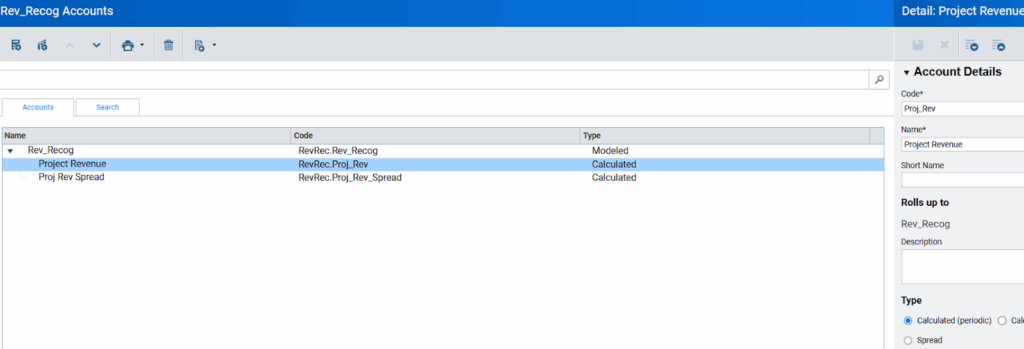
This account needs to display the Project Amt in the correct month, so use a formula such as:

2. Set up the spread account

3. Select the Spread radio button under “Type”
Then these two selections appear:

4. Select the account you just created (Project Revenue) as the Source Account
5. Select Proj_Rev_Spread as the “Spread Using”. Proj_Rev_Spread is the spread definition that was defined above in step 3 under “Set up the Columns”
See the results by going to the sheet and entering data and selecting row details.
6. Enter data:
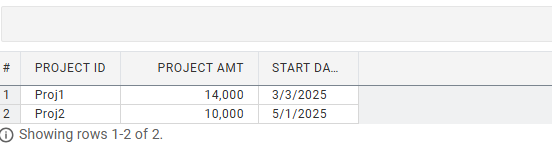
7. Once set up, enter data into the modeled sheet and view Row Details (picture of row 1 below).

You’ll see that the total revenue amount—such as $14,000 starting in March 2025—is automatically allocated across months based on the defined spread expression.
Spread Lookups are a powerful way to automate revenue and expense spreading in Workday Adaptive Planning. By defining the logic once, finance teams can eliminate manual calculations, improve accuracy, and ensure consistent treatment across projects. This approach is especially valuable for implementation-driven revenue, long-term projects, and complex planning models where timing matters.
With Spread Lookups in place, FP&A teams can spend less time managing allocations and more time analyzing results and guiding better business decisions.
Revelwood is more than just a Platinum Workday Adaptive Planning partner — we’re a trusted advisor to the Office of Finance. With 30 years of experience and award-winning expertise, we bring together powerful software, proven best practices and pre-built, ready-to-deploy solutions that accelerate time to value. Our team doesn’t just implement technology — we help finance teams transform the way they plan, analyze and make decisions. Discover how Revelwood can help you get the most out of Workday Adaptive Planning — and achieve results that matter.
Read more Workday Adaptive Planning Tips & Tricks:
Leveraging Repeating Reports in Workday Adaptive Planning’s OfficeConnect
The Power of Split Rows in Workday Adaptive Planning Modeled Sheets