• Skip to main content
  • Skip to footer
Revelwood Logo

Revelwood

Your SUPER-powered WP Engine Site

  • Who We Are
    • About Us
      • Our Company
      • Our Team
      • Partners
    • Careers
      • Join Our Team
  • What We Do
    • Solutions
      • Workday Adaptive Planning
      • IBM Planning Analytics
      • BlackLine
    • Services
      • Finance Transformation Services
      • Implementation Services
      • Customer Care
        • Help Desk
        • System Administration as a Service
      • Workday Adaptive Planning Integration Center of Excellence
      • Training
        • Workday Adaptive Planning Training
        • IBM Planning Analytics / TM1 Training
    • Products
      • DataMaestro
      • LightSpeed
      • IBM Planning Analytics Utilities
  • How We Help
    • Use Cases
    • Client Success Stories
  • How We Think
    • Knowledge Center
    • Events
    • News
  • Contact Us

TM1

How to Remove Duplicate Elements from an Existing Subset in Planning Analytics Workspace

February 3, 2026 by Lee Lazarow

Managing large datasets in IBM Planning Analytics Workspace (PAW) often means dealing with complex lists of elements—from thousands of SKUs to extensive customer databases. In this edition of our IBM Planning Analytics Tips & Tricks series, Lee Lazarow, IBM Planning Analytics Practice Leader at Revelwood, demonstrates a simple, one-click solution to clean up your subsets by removing duplicate elements.

Watch the Video

See this tip in action! Watch the full video below to follow along step-by-step as Lee Lazarow demonstrates how to quickly identify and eliminate duplicates in Planning Analytics Workspace.

Whether you are a developer staring at a long list of elements or a modeler managing static subsets created by users, this tip will help you maintain a clean and accurate Planning Analytics environment.

Why Duplicates Happen in PAW

Duplicates often creep into explorations and subsets, especially when dealing with:

  • Large Dimensions: When viewing thousands of elements like SKUs or customers, it’s easy to miss a repeating entry.
  • Static Subsets: Unlike dynamic subsets, static lists created manually by users may accidentally include the same member multiple times.
  • Manual Modeling: Even experienced developers can overlook duplicates when manually building complex views.

How to Remove Duplicate Elements

Lee Lazarow shows the following process in the video:

  1. 1. Identify the Duplicate: In your exploration, notice if an account or element (such as “Rent”) appears more than once in your rows or columns.
  2. 2. Open the Set Editor: Click on the dimension in your rows (or columns) and select the Set Editor.
  3. 3. Find the “Remove Duplicated Members” Button: Within the Set Editor, look for the specific icon designed to clean up your list.
  4. 4. Execute with One Click: Simply click the “Remove duplicated members” button. PAW will instantly scan the list and remove any redundant entries.
  5. 5. Apply Changes: Click “Apply” to update your view. Your exploration is now modified to show only unique elements.

Why This Feature Matters

Using the built-in duplicate removal tool helps:

  • Save Time: You don’t have to manually scan thousands of rows to find errors.
  • Improve Accuracy: Ensure your reports and explorations aren’t double-counting or cluttering your data view.
  • Simplify Maintenance: Clean up user-created static subsets with a single click.

By leveraging this built-in PAW feature, you can let the system do the heavy lifting, allowing you to focus on analyzing your data rather than cleaning it.

Revelwood is an IBM Gold Business Partner with more than 30 years of experience designing, developing, implementing and maintaining IBM Planning Analytics environments. We focus on solutions for the Office of Finance and have partnered with clients of all sizes across all industries to optimize, enhance and expand their use of Planning Analytics. Revelwood’s Planning Analytics team consists of PA experts with decades of experience, and we have been recognized via awards including  IBM Champion status.

Stay up to date with PA – sign up for our weekly Planning Analytics Tips & Tricks newsletter, subscribe to our YouTube channel, and join our IBM Planning Analytics All-Stars group on LinkedIn.

Read more IBM Planning Analytics Tips & Tricks:

How to Create Picklists in Planning Analytics Workspace

Performance Monitoring in Planning Analytics Workspace

Linking Textboxes in IBM Planning Analytics Workspace

Home » TM1

Filed Under: IBM Planning Analytics Tips & Tricks Tagged With: IBM Cognos TM1, IBM Planning Analytics, TM1

Performance Monitoring in Planning Analytics Workspace

January 6, 2026 by Lee Lazarow

Keeping your IBM Planning Analytics environment running efficiently is critical as models grow, data volumes increase, and user activity expands. In this edition of our IBM Planning Analytics Tips & Tricks series, Lee Lazarow, IBM Planning Analytics Practice Leader at Revelwood, walks through how to use Performance Monitoring in Planning Analytics Workspace to better understand system usage and identify optimization opportunities.

Watch the Video

Prefer to see this tip in action? Watch the full video below to follow along step by step as Lee Lazarow demonstrates Performance Monitoring in Planning Analytics Workspace.

Whether you prefer to watch the video, read the walkthrough below, or do both, this tip will help you take a more proactive approach to monitoring and improving performance.

What Is Performance Monitoring in IBM Planning Analytics?

IBM Planning Analytics includes a built-in feature called Performance Monitor. When enabled, it collects statistics about your environment, such as memory usage and processing activity, and stores them in system control objects. These statistics provide valuable insight into how your databases and cubes are performing over time.

Performance monitoring is especially useful for:

  • Conducting system health checks
  • Identifying large or inefficient cubes
  • Understanding memory consumption
  • Spotting opportunities to optimize rules and feeders

How to Enable Performance Monitor

As Lee explains in the video, turning on Performance Monitor is quick and straightforward:

1. In Planning Analytics Workspace, right-click on the server name.

2. Select Performance monitor from the menu.

3. Confirm the prompt asking if you’re sure you want to enable it.

Because Performance Monitor records system statistics, IBM includes this confirmation step to acknowledge that there may be a slight performance impact. Once confirmed, simply save your selection and the Performance Monitor will begin running.

Understanding Control Cubes and Performance Statistics

After Performance Monitor is enabled, IBM Planning Analytics automatically creates a series of control objects, including several control cubes that store performance statistics.

To access them:

Expand your database

  • Navigate to Control Objects > Control Cubes
  • Look for cubes that begin with }StatsBy

These cubes capture performance data across different dimensions, such as by chore, client, rule, and cube.

Using }StatsByCube for Performance Analysis

One of Lee’s go-to tools during system health checks is the }StatsByCube control cube. This cube provides a clear view into how much memory each cube is consuming and why.

Within the default view, Lee focuses on three key metrics:

  • Memory used for input data – how much space is taken up by loaded data
  • Memory used for feeders – memory consumed by calculations and rule feeding
  • Total memory used – the combined footprint of each cube

For easier analysis, Lee recommends formatting the view (for example, using commas) to clearly see large values at a glance.

Identifying Optimization Opportunities

To prioritize analysis, Lee sorts the cubes in descending order by size. This quickly highlights the largest cubes in the environment.

From there, you can start asking important questions:

  • Is a cube large because it contains a lot of data?
  • Or is it large because of inefficient rules or overfeeding?
  • Are calculations driving unnecessary memory usage?

By comparing input data memory versus feeder memory, you can determine where optimization efforts will have the greatest impact—whether that’s redesigning rules, improving feeder logic, or adjusting data structures.

Why Performance Monitoring Matters

Performance Monitor isn’t just about visibility—it’s about actionable insight. By understanding where and how resources are being used, organizations can:

  • Improve system efficiency
  • Reduce memory consumption
  • Enhance user experience
  • Plan more effectively for growth

As Lee notes, Performance Monitor provides an excellent starting point for system optimization and ongoing performance management.

Revelwood is an IBM Gold Business Partner with more than 30 years of experience designing, developing, implementing and maintaining IBM Planning Analytics environments. We focus on solutions for the Office of Finance and have partnered with clients of all sizes across all industries to optimize, enhance and expand their use of Planning Analytics. Revelwood’s Planning Analytics team consists of PA experts with decades of experience, and we have been recognized via awards including  IBM Champion status.

Stay up to date with PA – sign up for our weekly Planning Analytics Tips & Tricks newsletter, subscribe to our YouTube channel, and join our IBM Planning Analytics All-Stars group on LinkedIn.

Read more IBM Planning Analytics Tips & Tricks:

Linking Textboxes in IBM Planning Analytics Workspace

Linked Data Types in Excel

Previewing Changes on Bulk Updates in IBM Planning Analytics

Home » TM1

Filed Under: IBM Planning Analytics Tips & Tricks Tagged With: IBM Planning Analytics, TM1

Linking Textboxes in IBM Planning Analytics Workspace

December 16, 2025 by Ivan Cepero

IBM Planning Analytics Workspace lets you create pop-out boxes in your books to make key numbers stand out. You can watch this tip in action in our “Make Numbers Pop with Linked Textboxes | IBM Planning Analytics Tips & Tricks from Revelwood” video.

Want to achieve the same effect in Excel? You can easily do this using text boxes—here’s how.

Here’s how to link a cell to a text box:

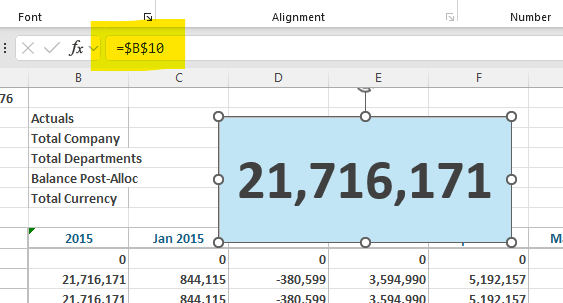
1 – Create a textbox on a worksheet using the icon within the Insert, Text ribbon.

2 – Click on the textbox border.  Once clicked, the blinking cursor will disappear.

3 – Enter an equal sign into the formula bar and then click on the cell that you want to display in the textbox.

You will now see the text box linked to the cell in the formula bar. From here, you can change the format of the textbox to make the number stand out (ex: larger fonts, background colors, etc.).

Revelwood is an IBM Gold Business Partner with more than 30 years of experience designing, developing, implementing and maintaining IBM Planning Analytics environments. We focus on solutions for the Office of Finance and have partnered with clients of all sizes across all industries to optimize, enhance and expand their use of Planning Analytics. Revelwood’s Planning Analytics team consists of PA experts with decades of experience, and we have been recognized via awards including  IBM Champion status.

Stay up to date with PA – sign up for our weekly Planning Analytics Tips & Tricks newsletter, subscribe to our YouTube channel, and join our IBM Planning Analytics All-Stars group on LinkedIn.

Read more IBM Planning Analytics Tips & Tricks:

Linked Data Types in Excel

Previewing Changes on Bulk Updates in IBM Planning Analytics

Accessing PAX Exploration Headers in Excel

Home » TM1

Filed Under: IBM Planning Analytics Tips & Tricks Tagged With: IBM Cognos TM1, IBM Planning Analytics, TM1

Linked Data Types in Excel

December 2, 2025 by Ivan Cepero

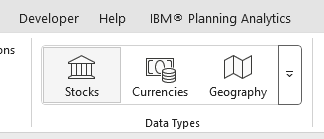
Excel supports Linked Data types, which are cells that connect to the internet and retrieve additional data. Excel contains a series of built-in linked data types such as Stocks, Currencies, and Geographies. These are found within the Data ribbon in Excel.

Here is an example using the Geography data type:

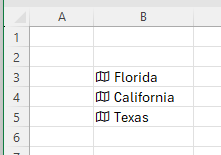
1 – Select a few cells and type in the following US state abbreviations: FL, CA, TX.

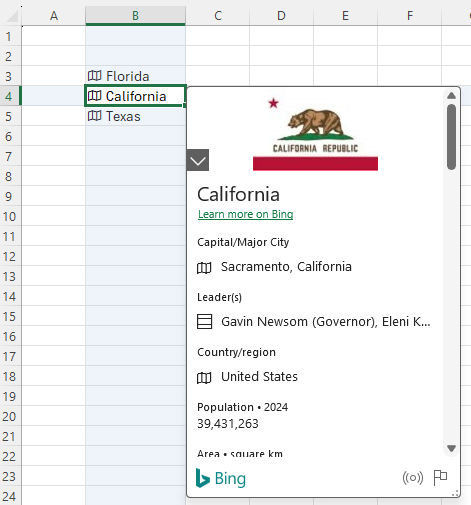
2 – Highlight the cells and click on Geography.  Excel will add the linked data type icon in the cells.

Hover your mouse on the new icon and click and a data card with information on that State will pop up.

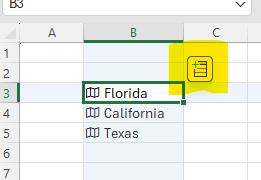
A new ‘Insert Data’ icon appears when you select a linked data type.  You can click on a data item from the item list to insert that data into Excel.

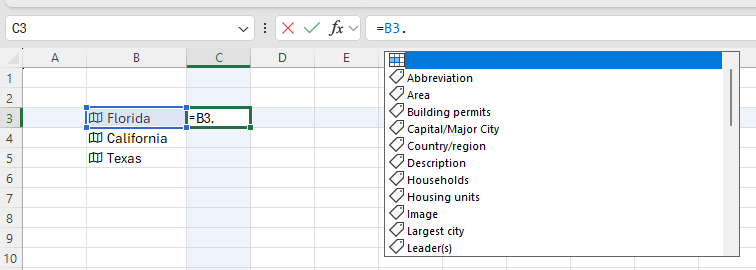
You can also integrate geographical data via a formula. When you point to a cell with a linked data type and enter a period, the list of available data will appear in a drop down menu.

This approach will allow you to make your Excel reports and input templates more interactive by pulling additional data from a single value.

Revelwood is an IBM Gold Business Partner with more than 30 years of experience designing, developing, implementing and maintaining IBM Planning Analytics environments. We focus on solutions for the Office of Finance and have partnered with clients of all sizes across all industries to optimize, enhance and expand their use of Planning Analytics. Revelwood’s Planning Analytics team consists of PA experts with decades of experience, and we have been recognized via awards including  IBM Champion status.

Stay up to date with PA – sign up for our weekly Planning Analytics Tips & Tricks newsletter, subscribe to our YouTube channel, and join our IBM Planning Analytics All-Stars group on LinkedIn.

Read more IBM Planning Analytics Tips & Tricks:

Previewing Changes on Bulk Updates in IBM Planning Analytics

Accessing PAX Exploration Headers in Excel

TM1SET Excel Formula

Home » TM1

Filed Under: IBM Planning Analytics Tips & Tricks Tagged With: IBM Cognos TM1, IBM Planning Analytics, TM1

Previewing Changes on Bulk Updates in IBM Planning Analytics

November 18, 2025 by Ivan Cepero

Have you ever changed values from an IBM Planning Analytics for Excel (PAfE) exploration and wanted to confirm what is getting loaded into the model?  You can do this by using the “Preview changes” link.

Users can make multiple inputs into a PAfE exploration and then click the Commit button to send all the changes to the TM1 database in one action.  After clicking Commit, users will see this confirmation window:

Instead of clicking Yes to commit the changes, users can click on the “Preview changes” hyperlink. This will generate a pop up window that displays the current value of the data points and the proposed new values.

This approach is a great way to validate updates before sending them into the database.

Revelwood is an IBM Gold Business Partner with more than 30 years of experience designing, developing, implementing and maintaining IBM Planning Analytics environments. We focus on solutions for the Office of Finance and have partnered with clients of all sizes across all industries to optimize, enhance and expand their use of Planning Analytics. Revelwood’s Planning Analytics team consists of PA experts with decades of experience, and we have been recognized via awards including  IBM Champion status.

Stay up to date with PA – sign up for our weekly Planning Analytics Tips & Tricks newsletter, subscribe to our YouTube channel, and join our IBM Planning Analytics All-Stars group on LinkedIn.

Read more IBM Planning Analytics Tips & Tricks:

TM1SET Excel Formula

The TRIMRANGE Excel Formula

Learn the Excel Focus Cell

Home » TM1

Filed Under: IBM Planning Analytics Tips & Tricks Tagged With: IBM Cognos TM1, IBM Planning Analytics, TM1

Accessing PAX Exploration Headers in Excel

November 4, 2025 by Ivan Cepero

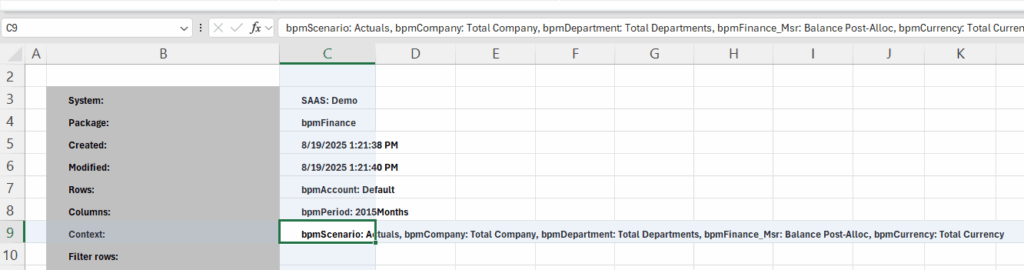
Explorations are a great way to perform ad-hoc analyses in your IBM Planning Analytics for Excel (PAfE) environment. However, the title selections in the Exploration ribbon are not directly accessible. Here is an approach to access the title selections and make your reports more dynamic.

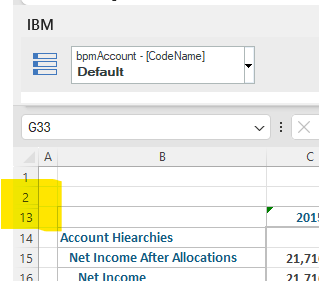
  • 1. Explorations have connect information in hidden rows. In the example below, we can find this data by unhiding rows 3 through 12.
  • 2. The titles (context) data is in located in cell C9
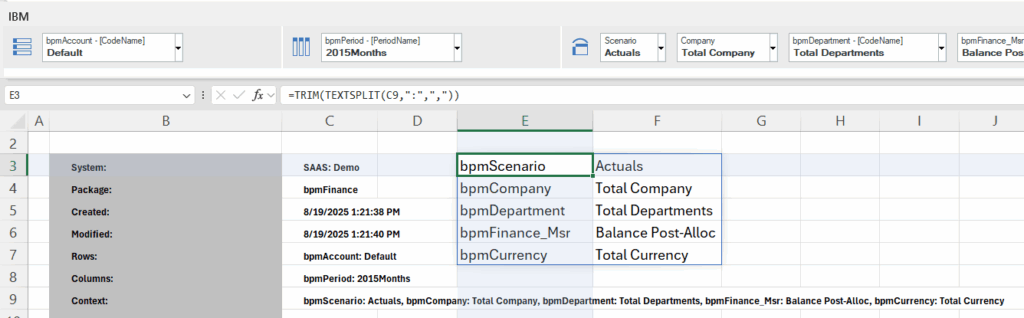
  • 3. We can use the TEXTSPLIT and TRIM formulas to parse the context into individual cells:  

=TRIM(TEXTSPLIT(C9,”:”,”,”))

The formula will update every time you make a change to the Exploration.  This approach can be merged with lookup formulas in the other sheets to make your reports more dynamic.

Revelwood is an IBM Gold Business Partner with more than 30 years of experience designing, developing, implementing and maintaining IBM Planning Analytics environments. We focus on solutions for the Office of Finance and have partnered with clients of all sizes across all industries to optimize, enhance and expand their use of Planning Analytics. Revelwood’s Planning Analytics team consists of PA experts with decades of experience, and we have been recognized via awards including  IBM Champion status.

Stay up to date with PA – sign up for our weekly Planning Analytics Tips & Tricks newsletter, subscribe to our YouTube channel, and join our IBM Planning Analytics All-Stars group on LinkedIn.

Read more IBM Planning Analytics Tips & Tricks:

TM1SET Excel Formula

The TRIMRANGE Excel Formula

Learn the Excel Focus Cell

Home » TM1

Filed Under: IBM Planning Analytics Tips & Tricks Tagged With: IBM Planning Analytics, TM1

TM1SET Excel Formula

October 21, 2025 by Ivan Cepero

The TM1SET Excel formula is similar to the SUBNM formula except that TM1SET is hierarchy aware and has formula reference traversal.

The syntax for TM1set is:

TM1set(uri_identifier,serverName,dimensionName,hierarchyName,setExpression,selectedElement,sessionSetOut,activeDisplay,displayModeEnum)

Follow these steps to build a file with the TM1SET formula.

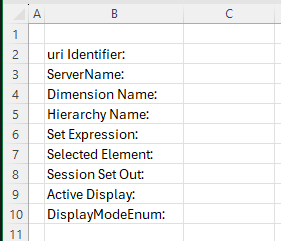
1 – In a new workbook, set up the following labels:

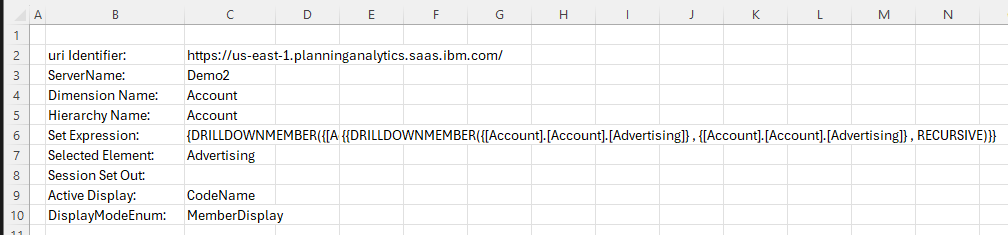
2 – Uri Identifier: the URL to the TM1 server
In cell c2, enter =TM1PRIMARYDATASOURCE()

3 – Server Name: the name of the TM1 server
In cell C3, enter the name of the TM1 server (Demo2 in this example)

4 – Dimension Name: The dimension TM1SET will use
In cell C4, enter the name of the dimension (Account in this example)

5 – Hierarchy Name: The name of the hierarchy TM1SET will use. If not using hiearchies, repeat the dimension name.
In cell C5, enter the name of the hierarchy (Account in this example)

6 – Set Expression: The Set expression for TM1Set. This expression can be hardcoded or copied from the subset editor.
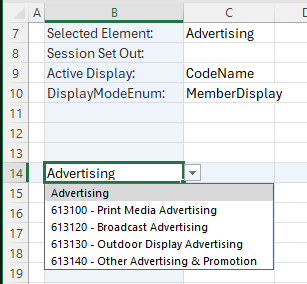
In cell C6, input the set expression. In this example, we are looking for all children of the Advertising parent, the set expression is:

{DRILLDOWNMEMBER({[Account].[Account].[Net Income After Allocations^Net Income^EBITDA^Operating Expenses^Advertising]} , {[Account].[Account].[Net Income After Allocations^Net Income^EBITDA^Operating Expenses^Advertising]} , RECURSIVE)}

7 – Selected Element: The initial element to display
In cell C7, enter Advertising

8 – Session Set Out: TM1SET will fil this in with a unique identifier
Leave cell C8 blank

9 – Active Display: The alias to use for element display
In cell C9, enter the alias name (CodeName in this example)

10 – Display Mode Enum: You can alter the output of the TM1SET formula. Valid options for this parameter are:

SESSIONSET: a unique session set ID created by the server
MUN: the MDX member unique name
MEMBERDISPLAY: the element name or alias

In cell C10, enter MemberDisplay

Once filled in, your template should look like this:

Build the TM1SET formula using the parameters. In cellB14, input this TM1SET formula:

=@TM1SET(C2,C3,C4,C5,C6,C7,C8,C9,C10)

The TM1SET formula will show a drop down which is the sets of elements returned by the Set expression parameter.

Set Editor

TM1SET will not automatically open the subset editor when double clicked. To enable this functionality, you will need to assign the TM1SET formula to a specific named range

To enable the Set Editor:

1 – Select the TM1SET formula

2 – Go to Formulas > Name Manager

3 – Click on New

4 – Create a new name range, named tm2\\_tracked

5 – The scope must be the sheet name

6 – Click OK

7 – Close the Name Manager

Now you can double click on the TM1Set formula and the set Editor will appear

Formula Reference Traversal

This is a feature where TM1 set will change any cell reference that it is using. In this example, we are using the CodeName alias in C9.

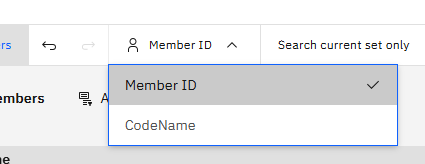
1 – Double click the TM1SET formula

2 – In the set editor change the alias to Member ID

3 – Click on Apply

Note how C9 now shows MEMBER_NAME and the Session Set Out cells have been filled out. TM1SET will ‘reach back’ to the source cells and fill them out with the selections made in the set editor.

Revelwood is an IBM Gold Business Partner with more than 30 years of experience designing, developing, implementing and maintaining IBM Planning Analytics environments. We focus on solutions for the Office of Finance and have partnered with clients of all sizes across all industries to optimize, enhance and expand their use of Planning Analytics. Revelwood’s Planning Analytics team consists of PA experts with decades of experience, and we have been recognized via awards including  IBM Champion status.

Stay up to date with PA – sign up for our weekly Planning Analytics Tips & Tricks newsletter, subscribe to our YouTube channel, and join our IBM Planning Analytics All-Stars group on LinkedIn.

Read more IBM Planning Analytics Tips & Tricks:

The TRIMRANGE Excel Formula

IBM Planning Analytics Tips & Tricks: Learn the Excel Focus Cell

IBM Planning Analytics Tips & Tricks: Making Pivot Tables More Interactive

Home » TM1

Filed Under: IBM Planning Analytics Tips & Tricks Tagged With: IBM Planning Analytics, TM1

The TRIMRANGE Excel Formula

October 7, 2025 by Ivan Cepero

Have you ever referenced an entire row or column and wondered if Excel is doing too much additional processing? If so, the TRIMRANGE formula can help!

The TRIMRANGE formula makes your Excel file more efficient by removing extra rows and columns from a formula. This can be used to create row and column references without impacting Excel performance.

The syntax is written as:

=TRIMRANGE(range,[trim_rows],[trim_cols])   

Range: The range to be trimmed

Trim_rows: defines which rows should be trimmed

0 – None

1 – Leading blank rows

2 – Trailing blank rows

3 – Leading and trailing blank rows (default option)

Trim_columns: defines which columns should be trimmed

0 – None

1 – Leading blank columns

2 – Trailing blank columns

3 – Leading and trailing blank columns (default option)

For example, instead of using a full column reference:

=XLOOKUP(“CRP – Corporate”,A:A,C:C)

You can instead use TRIMRANGE:

=XLOOKUP(“CRP – Corporate”,TRIMRANGE(A:A),TRIMRANGE(C:C))

Trim References

Shortcuts can be used when defining the range by using a period before and/or after the colon in a range reference.

A.:.A trims leading and trailing blanks

A.:A trims leading blanks

A:.A trims trailing blanks

This approach will make your spreadsheets more efficient and improve the overall performance.

Revelwood is an IBM Gold Business Partner with more than 30 years of experience designing, developing, implementing and maintaining IBM Planning Analytics environments. We focus on solutions for the Office of Finance and have partnered with clients of all sizes across all industries to optimize, enhance and expand their use of Planning Analytics. Revelwood’s Planning Analytics team consists of PA experts with decades of experience, and we have been recognized via awards including  IBM Champion status.

Stay up to date with PA – sign up for our weekly Planning Analytics Tips & Tricks newsletter, subscribe to our YouTube channel, and join our IBM Planning Analytics All-Stars group on LinkedIn.

Read more IBM Planning Analytics Tips & Tricks:

IBM Planning Analytics Tips & Tricks: Learn the Excel Focus Cell

Exploring Consecutive Squares in Today’s Date: 9-16-25

IBM Planning Analytics Tips & Tricks: Making Pivot Tables More Interactive

Home » TM1

Filed Under: IBM Planning Analytics Tips & Tricks Tagged With: IBM Cognos TM1, IBM Planning Analytics, TM1

IBM Planning Analytics Tips & Tricks: Learn the Excel Focus Cell

September 23, 2025 by Revelwood

Tips & Tricks from Revelwood

It’s easy to lose track of your active cell when working with large worksheets in Excel. Sure, you can always glance at the Name box in the upper-left corner to see the cell reference (for example, L19), but that’s not always convenient or clear when you’re presenting to others.

That’s where Focus Cell comes in. You can watch us demonstrate this in a recent IBM Planning Analytics Tips & Tricks video.

Make Your Presentations More Interactive

Excel’s Focus Cell feature highlights the active cell with a distinct border grid, making it crystal clear where you are on the sheet. This not only helps you navigate large reports faster but also makes your presentations easier for your audience to follow.

How to use Focus Cell

  1. 1. Go to the View tab in Excel.
  2. 2. Select Focus Cell.
  3. 3. Excel will now highlight your active cell with a grid around it.

Customize the Highlight Color

Don’t like the default highlight color? No problem. Simply use the Focus Cell Color drop-down to change it to something that fits your preferences — or even matches your corporate colors.

When showcasing Planning Analytics reports in Excel, clarity matters. Highlighting the active cell makes it easier for your viewers to see exactly what you’re working on — whether you’re drilling into actuals vs. plan, walking through a variance analysis or demonstrating forecasting models.

Try Focus Cell in your next Planning Analytics Excel presentation — it’s a simple way to keep your audience engaged and eliminate confusion.

Revelwood is an IBM Gold Business Partner with more than 30 years of experience designing, developing, implementing and maintaining IBM Planning Analytics environments. We focus on solutions for the Office of Finance and have partnered with clients of all sizes across all industries to optimize, enhance and expand their use of Planning Analytics. Revelwood’s Planning Analytics team consists of PA experts with decades of experience, and we have been recognized via awards including  IBM Champion status.

Stay up to date with PA – sign up for our weekly Planning Analytics Tips & Tricks newsletter, subscribe to our YouTube channel, and join our IBM Planning Analytics All-Stars group on LinkedIn.

Read more IBM Planning Analytics Tips & Tricks:

IBM Planning Analytics Tips & Tricks: MDX to Copy a View

IBM Planning Analytics Tips & Tricks: Excel Focus Cell

IBM Planning Analytics Tips & Tricks: PAW Default Settings

Home » TM1

Filed Under: IBM Planning Analytics Tips & Tricks Tagged With: IBM Cognos TM1, IBM Planning Analytics, TM1

  • Page 1
  • Page 2
  • Page 3
  • Interim pages omitted …
  • Page 39
  • Go to Next Page »

Footer

Revelwood Overview

Revelwood helps finance organizations close, consolidate, plan, monitor and analyze business performance. As experts in solutions for the Office of Finance, we partner with best-in-breed software companies by applying best practices guidance and our pre-configured applications to help businesses achieve their full potential.

EXPERTISE

  • Workday Adaptive Planning
  • IBM Planning Analytics
  • BlackLine

ABOUT

  • Who We Are
  • What We Do
  • How We Help
  • How We Think
  • Privacy

CONNECT

World Headquarters

Florham Park, NJ | 201 984 3030

European Headquarters

London & Edinburgh | +44 (0)131 240 3866

Email
info@revelwood.com

Copyright © 2026 · Revelwood Inc. All rights reserved. Revelwood® and the Revelwood logo are registered marks of Revelwood Inc.