

This is a guest blog post by Revelwood’s Nicole Frigo.
Did you know that IBM Planning Analytics for Excel (PAx) gives you the ability to use an asymmetrical approach that allows you to display combinations of elements without the repetition? IBM Cognos TM1 and IBM Planning Analytics gives you the ability to quickly create views of your existing data. The views are symmetrical, which means that any rows or columns that contain multiple elements will include all possible combinations of the selected elements. But sometimes you may not want to see all combinations.
The following is an example of a symmetrical view that will be converted into an asymmetrical view. This example will use a Financial GL cube.
Connect to an environment in PAx and created an exploration. We will arrange our view in the following way:
- Accounts will be on the rows.
- Scenario and Period will be on the columns (using multiple periods and a single scenario)
- All other dimensions will be in the context area.
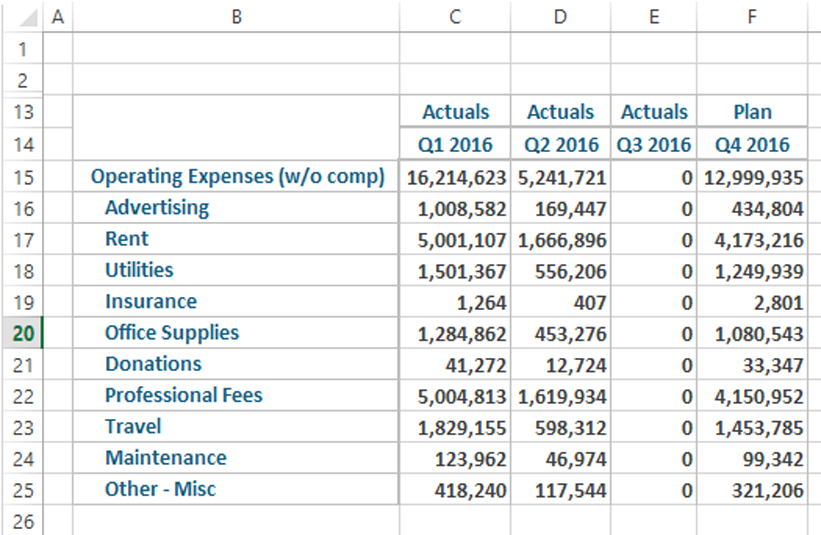
Here are the results of our example:
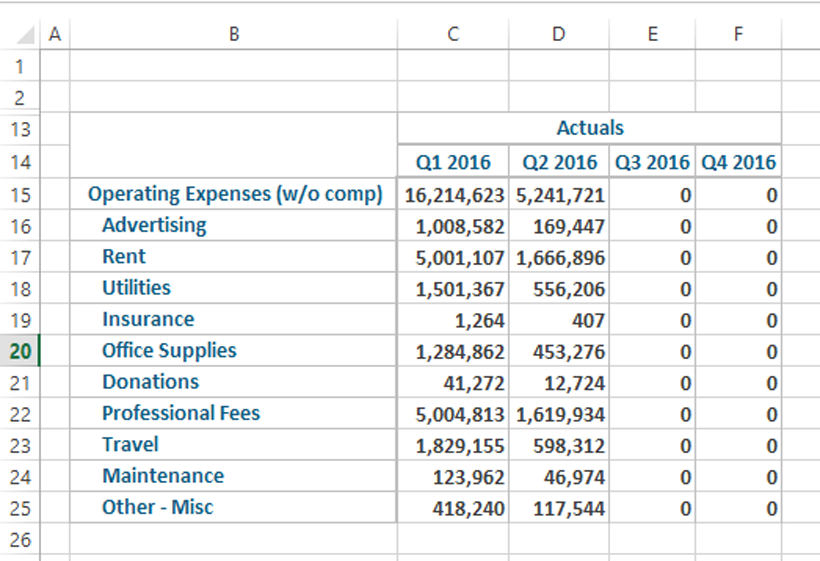
It may not make sense to show Actuals for all 4 quarters since there are no actuals for Q3 or Q4. It may make more sense to show Plan values in those months. A symmetrical view would require 8 columns to appear (4 Actuals plus 4 Plan), but an asymmetrical view allows the columns to be merged together.
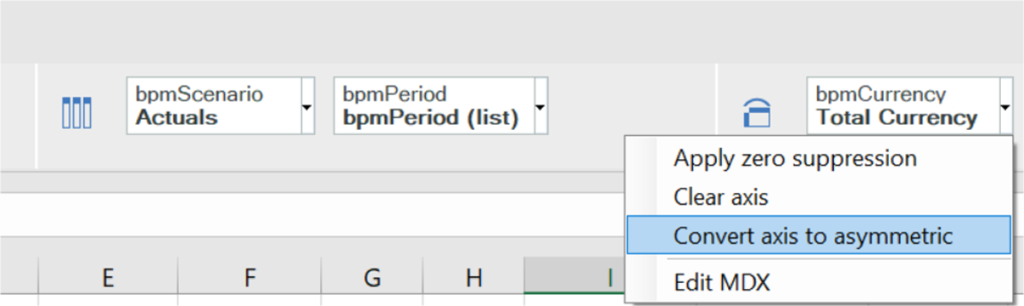
Right click in the column drop zone area and select the option to “Convert Axis to asymmetric”.
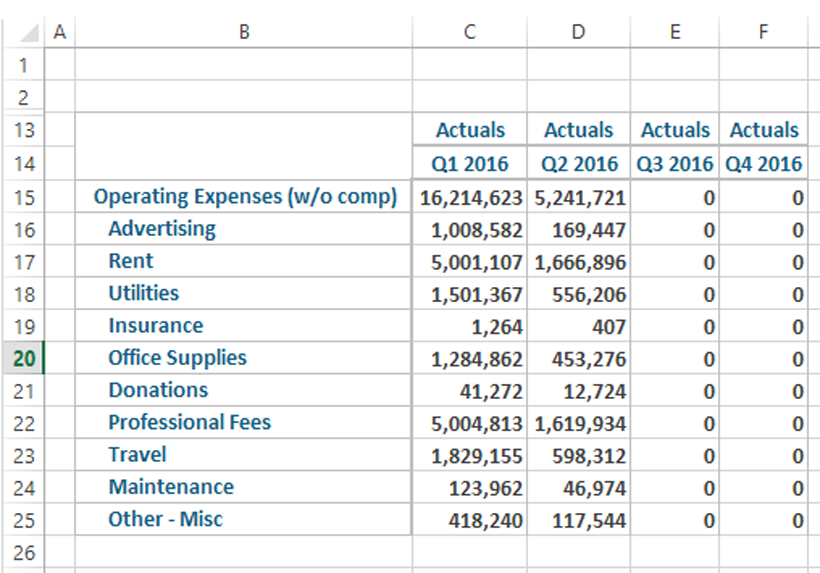
Once converted, you will see that each column now has its own scenario header, each of which now shows Actuals (which was the value of the original exploration).
Expand the scenario dimension in the navigation tree to display all of the members.
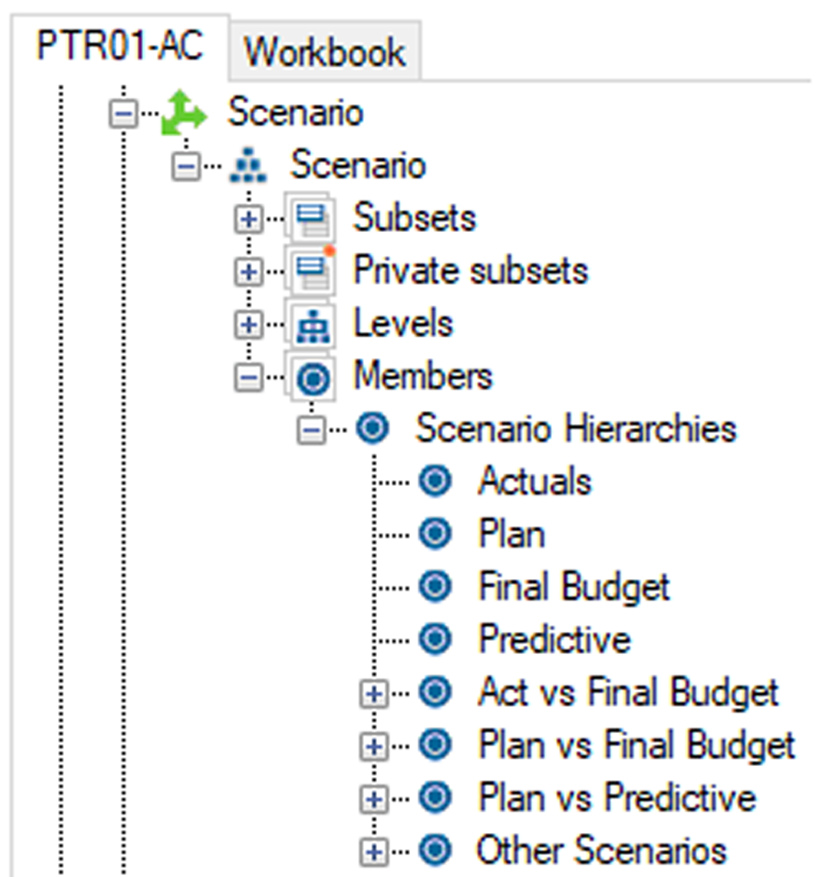
Select the Plan element and drag this onto the cell for Actuals of Q4 (cell F13 in this example). Release the cursor when you see an outline around the cell. You will notice that Q4 is now showing the Plan values while the prior 3 quarters are still showing Actuals.
A stacked square icon appears in the left corner of any axis where asymmetry is applied.

You can convert the exploration back to a symmetrical version by double clicking on the icon.
Asymmetric analyses are one of many new features in PAx that enhance the overall functionality and reporting capabilities of Planning Analytics.
IBM Planning Analytics, which TM1 is the engine for, is full of new features and functionality. Not sure where to start? Our team here at Revelwood can help. Contact us for more information at info@revelwood.com. And stay tuned for more Planning Analytics Tips & Tricks weekly in our Knowledge Center and in upcoming newsletters!