If you have spent any time building modeled sheets in Workday Adaptive Planning, you have inevitably run into the “hidden column” problem.
You build a comprehensive, 20-column personnel or capital planning sheet. It works perfectly. But then, the client drops a common requirement: “Our department managers need to input headcount, but they absolutely cannot see the base salary or bonus percentage columns.”
Historically, this meant duplicating work. You had to build one sheet for the managers to input their drivers, and a completely separate, secure sheet for FP&A and HR to calculate the financial impact. It caused model bloat, complicated your integrations, and made reporting a headache.
With the 2026R1 release, Workday Adaptive Planning has finally solved this by introducing Access Rules to prevent specific users/user groups from seeing certain columns on modeled sheets. Here is why this update is a massive win for both builders and end-users.
What Exactly Is Changing?
Prior to 2026R1, security on modeled sheets was generally restricted to the sheet level or the row level (via level access). If a user had access to the sheet, they could see every column on it (unless hidden on the sheet, but users could still unhide the columns in display options).
Now, administrators can apply targeted access rules to specific columns within a single modeled sheet. You can define exactly which user groups or roles are allowed to Read, Write, or Hide individual data points.
3 Immediate Use Cases for Your Models
1. Unified Personnel Planning This is the most obvious and immediate benefit. You no longer need separate sheets for HR and department managers. You can build a single “Roster” sheet where managers have write-access to columns like Start Date, Role Title, and Department, while the Base Salary, Bonus Target, and Merit Increase columns are completely hidden from their view and restricted strictly to the FP&A or HR teams.
2. Controlled Revenue & Quota Models If you are building a sales capacity or revenue model, account executives or sales managers might need to input their projected unit volumes or target accounts. However, you can now lock down the Pricing Tier or Discount Approval columns as Read-Only, preventing anyone outside of leadership from overriding the standard pricing assumptions.
3. Streamlined Capital Expenditures (CapEx) When department heads request new equipment, they can fill out the Asset Name, Purchase Month, and Estimated Cost. You can now restrict the Useful Life and Depreciation Method columns so only the accounting team can edit them, ensuring the downstream P&L and Balance Sheet calculations remain accurate and untouched by end-users.
The Bottom Line: Better Performance, Cleaner Architecture
Every time you have to build a workaround “shadow sheet” to hide data, you add unnecessary calculations to the model, which can slow down save times and complicate the user experience.
By utilizing column-level access rules, you can drastically reduce the total number of modeled sheets in your instance. It keeps the architecture clean, makes the administrative upkeep much easier, and gives your end-users a single source of truth without compromising data security.
How to Add these Access Rules
Within the Access Rules menu, you will see a new “Manage Sheet Columns” Button.
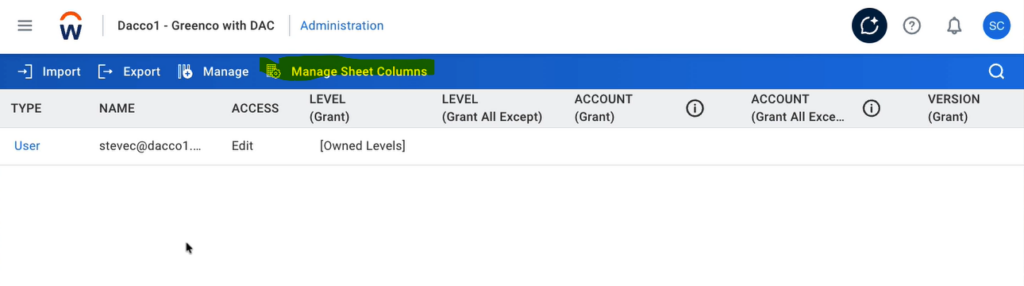
After clicking this, you will see a dropdown to select any modeled sheet, along with the ability to select any data entry columns from those sheets to create access rules on.

After choosing the columns you want to create Access Rules on, click Done. This makes these columns eligible to create those rules on. Once a column or multiple columns are made eligible, you’ll notice the info icon next to the account columns will specify that modeled sheet columns are able to have rules created for them.

Export your access rules, and add the columns you want to hide in the Account (Grant All Except) column for that specific user/user group. In the example below, Andrea will not be able to see the Bonus or Merit columns on the sheet with code “Wkfc_Demo”

Revelwood is more than just a Platinum Workday Adaptive Planning partner — we’re a trusted advisor to the Office of Finance. With 30 years of experience and award-winning expertise, we bring together powerful software, proven best practices and pre-built, ready-to-deploy solutions that accelerate time to value. Our team doesn’t just implement technology — we help finance teams transform the way they plan, analyze and make decisions. Discover how Revelwood can help you get the most out of Workday Adaptive Planning — and achieve results that matter.
Read more Workday Adaptive Planning Tips & Tricks:
Planning Center and Sheets Performance Evaluator
Connecting Plan Data to GL Accounts in Adaptive: A Method-by-Method Breakdown
Creating Scenarios in Adaptive Planning