
Required: To request this feature, contact your Named Support Contact (NSC) to submit a Workday Customer Care: Adaptive Instance Management type case (request). After confirming that you’re eligible, Workday will enable the feature. This is the only way to access the feature for now.
Note: Verify with your organization’s IT department that you have the necessary approval and access before installing. Review the permissions that Adaptive for Google Sheets requests (requires) from Google as it may grant more access than desired.
Overview
Similar to Workday’s OfficeConnect add-on for Microsoft Excel, Workday now enables users to connect their Adaptive Tenant to Google Sheets. Upon installing the Google Workspace Marketplace add-on and adding their tenant, users can pull Adaptive Planning data directly into Google Sheets. They can then modify and refresh this data to generate reports and more.
What makes the extension for Google Sheets unique is its seamless functionality. Simple or summary reports can be generated quickly and easily shared—even with users who don’t have the extension installed. Reports also display live updates, and signed-in users can use the Explore Cell function to drill directly into their Adaptive instance in seconds.
The add-on also includes Ask Workday, a generative AI feature. Users can interact with data, generate summaries, detect anomalies, identify key trends, and more using freeform questions or auto-populated suggestions.
Using Adaptive for Google Sheets
How to Install Workday For Google Sheets

Navigate to the Google Workspace Marketplace and search for Workday for Google Sheets. Confirm you’ve selected the correct one and click install.
Within the users Adaptive Planning tenant, make sure the permissions for “Access Workday for Google Sheets” and “Access Ask Workday for Adaptive Planning” are both selected. Without these user permissions the user will not be able to connect the tenant to Google Sheets. Have your Named Support Contact (NSC) submit a Customer Care Case with Workday to get the feature enabled which grants access to the functionality. Enable the Writeback from External Sources permission if you wish to use writeback functionality.
Note: Have your organization’s IT team review the permissions that Adaptive for Google Sheets requests (requires) from Google as it may grant more access than desired.
Adding a Tenant
Once installed, create and open a new Google Sheet. Access Extensions in the top ribbon then select Workday for Google Sheets –> Workday. Before you’re able to sign in and create reports you will need to add your instance (tenant). Select add tenant then Adaptive Planning if your instance is standalone of other Workday products (FINS/HCM) or Adaptive Planning via Workday if your organization uses FINS/HCM. To add either type of tenant Workday will ask for the name (recommend the same as instance name), API Endpoint URL, and the Authorization Endpoint URL. Additionally, if you’re adding the tenant type Adaptive Planning via Workday you will need the client ID.
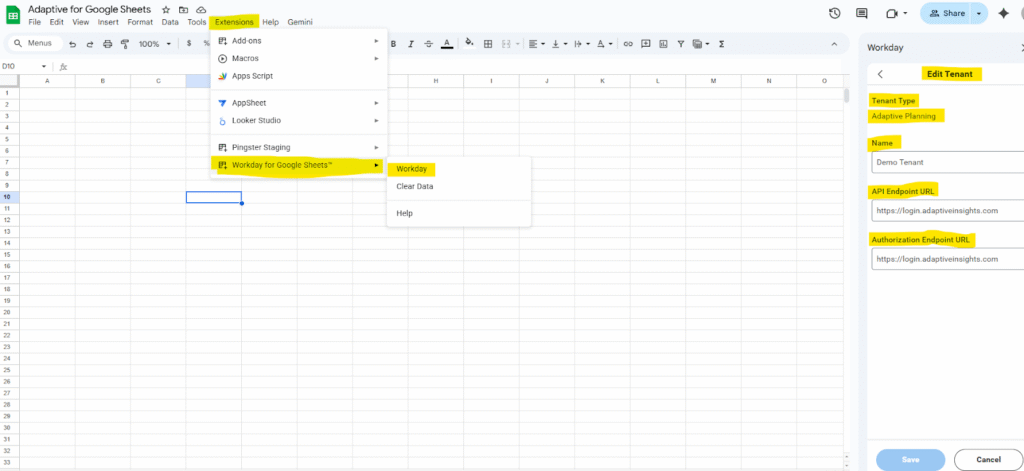
API and Authorization Endpoint URL: https://login.adaptiveinsights.com
Building a Report
Once you have added and saved your tenant you can sign in using your Workday Adaptive Planning credentials. Select Build Report and choose which accounts you would like to include (this can be very basic to start and later expanded). Once selected, it will automatically generate a basic report for those accounts. Adaptive for Google Sheets breaks out reporting sections/elements using segments. The user can drag and drop additional reporting elements to an existing segment or create new segments. By default the first Segment is the accounts (Rows) and the second is time (Columns). Additionally users can add filters, change the display, explore cell, use writeback mode, and more.
Tip: I recommend enabling the auto refresh in the sheet (report) settings so you don’t have to manually refresh for each change.
Below is an example of creating a basic Income (P&L) Statement.

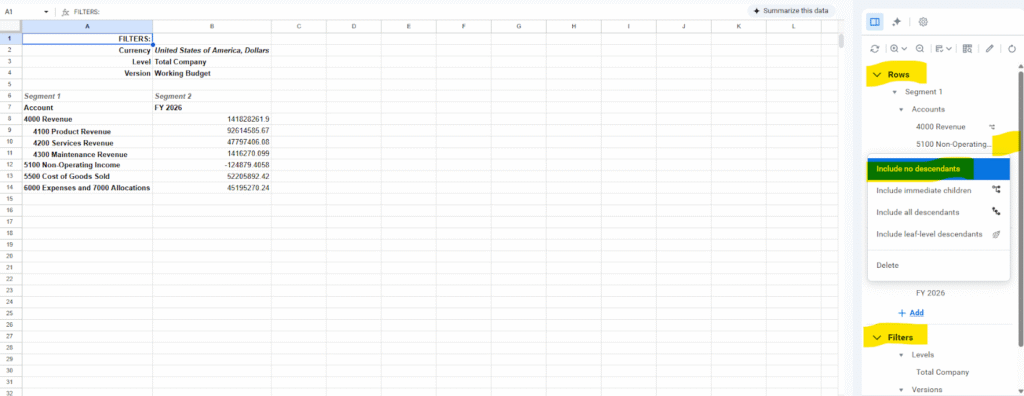
Tip: You can use the related actions (3 dots next to an element – in this case the element is the account) on the account within a given segment to include additional children/descendants (accounts rolling up to them).

Tip: Here I added quarters in our time section of our column segment and expanded immediate children to get the months for a more complete report. Additionally I added the account attribute GAAP P&L as a filter. Users can add entirely new column or row segments using the + Add icon at the bottom of the given section. Optionally they can add to an existing one like I did in my example by hovering over the element and clicking the plus sign where related actions appear.

Tip: Finally, I want to touch on my personal favorite feature, Explore Cell. In the screenshot above, if I wanted to get a more detailed breakout of my Product Revenue for Jan 2026 I can select cell C 10 and select the explore cell option in my task pane.
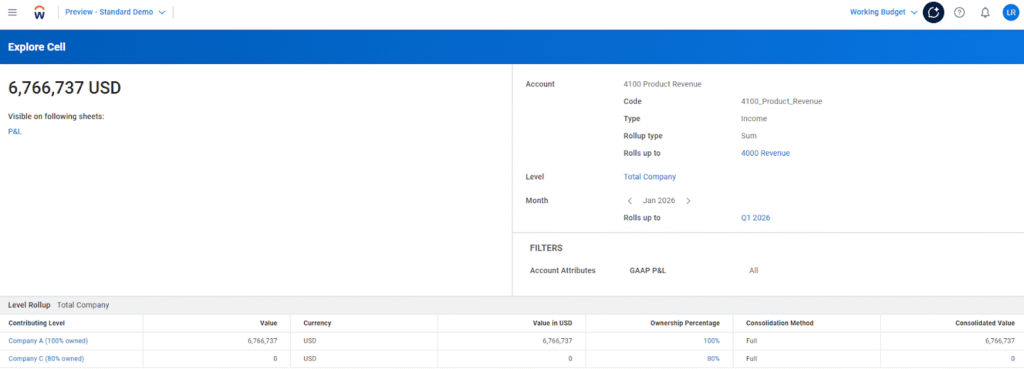
Tip: In seconds this button will take you directly to your Adaptive instance at the intersection of data selected where the user can further drill through and explore the cell in detail. Be sure to check out additional functionality such as keep/remove only, writeback mode, and more.
Note: Some of the functionality such as writeback mode may still be a work in progress so we recommend testing before relying on it.
Summary
Workday Adaptive Planning for Google Sheets is a great reporting tool that users have as an additional resource at their disposal for no extra cost. If your organization is looking for a more efficient way to create summary or management style reports with your Adaptive Data seamlessly, I would highly recommend giving this extension a try. This feature allows users to work with live Adaptive data in a collaborative environment that makes sharing easier than ever. Leverage other functionality in this feature like explore cell, writeback, and Ask Workday. Utilize the intuitive user interface and its hierarchical setup to easily build reports by dragging and dropping, selecting, and more. Give this feature a try and see if it’s the kind of seamless and collaborative reporting tool your team has been missing.
Revelwood is more than just a Platinum Workday Adaptive Planning partner — we’re a trusted advisor to the Office of Finance. With 30 years of experience and award-winning expertise, we bring together powerful software, proven best practices and pre-built, ready-to-deploy solutions that accelerate time to value. Our team doesn’t just implement technology — we help finance teams transform the way they plan, analyze and make decisions. Discover how Revelwood can help you get the most out of Workday Adaptive Planning — and achieve results that matter.
Read more Workday Adaptive Planning Tips & Tricks:
Spreading Revenue with Spread Lookups
Boosting Data Accuracy with Modeled Sheet Data Validation in Workday Adaptive Planning